
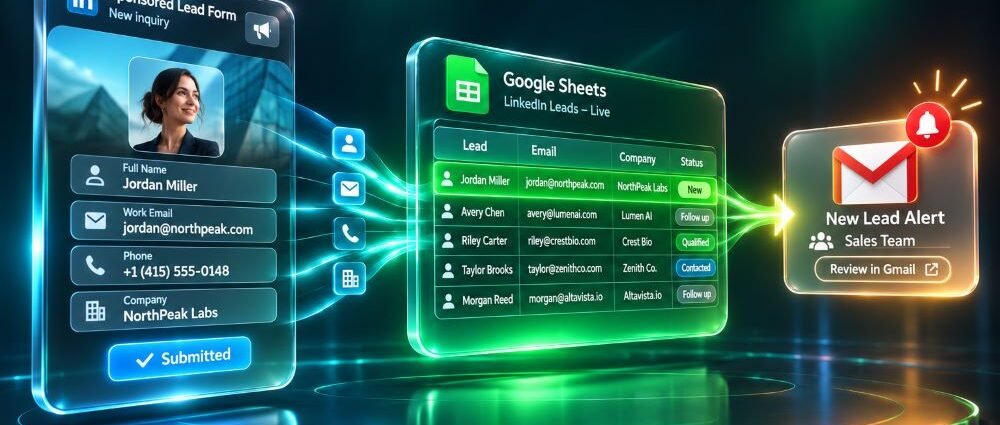
A LinkedIn Lead Gen Form can collect contact details without sending prospects to an external landing page. The trouble begins when those responses remain in Campaign Manager while the sales team works somewhere else. Someone has to download the leads, organize the information, and make sure the right person sees each new inquiry.
Connecting LinkedIn Lead Gen Forms to Google Sheets with Gmail alerts removes much of that manual work. A Zapier automation captures a sponsored form response, adds it to a spreadsheet, and emails an internal recipient. The setup is relatively straightforward, but getting reliable results requires careful field mapping, testing, and a plan for handling failed transfers.
Why Connect LinkedIn Lead Gen Forms to Google Sheets and Gmail?
Google Sheets and Gmail serve different purposes in this workflow. The spreadsheet stores lead information in a shared location, while Gmail notifies someone who needs to act on it. Keeping both steps connected reduces the chance that a response will sit unnoticed until the next manual export.
For a small B2B campaign, the sheet might contain names, work emails, company details, campaign information, and follow-up status. A sales manager can review incoming responses without opening Campaign Manager every time.
This approach works for teams that need a lightweight system rather than a full CRM. It does not automatically provide sales ownership, qualification rules, or conversation history, however. Someone still needs to decide who handles each submission and what happens next.
The initial LinkedIn form setup determines which contact details and qualification answers are available. The integration then transfers those fields into a system the team can use.
What You Need Before Setting Up the Integration
Start with a sponsored LinkedIn Lead Gen Form connected to an advertising account. You also need permission to access the form responses. Zapier requires appropriate Campaign Manager roles on the ad account and Company Page permissions, such as Page Admin or Lead Gen Forms Manager. Simply being able to view a campaign may not provide sufficient access.
For the main setup, you will need a paid Zapier plan because LinkedIn Ads is a premium application. The current LinkedIn Ads requirements in Zapier also specify that authorization expires every 60 days and must be renewed manually.
Prepare a Google account with permission to edit the destination spreadsheet and another account authorized to send Gmail messages. Using business-managed accounts is preferable to relying on an employee’s personal login, particularly when the workflow will remain active for months.
Create a spreadsheet called LinkedIn Leads and add the following headers before configuring Zapier.
| Google Sheets column | Source or purpose |
|---|---|
| Lead ID | LinkedIn response identifier |
| Submitted At | Submission timestamp |
| First Name | LinkedIn form field |
| Last Name | LinkedIn form field |
| Work Email | Email captured by the form |
| Company | Company field, if available |
| Campaign | Campaign information, if available |
| Follow-up Status | Internal tracking |
Table 1. Suggested lead-tracking fields.
The exact mapping depends on the form and what the connector exposes. Some custom answers or campaign fields may require additional configuration, while optional fields may be empty.
Keep the column names stable after setting up the automation. Changing spreadsheet headers without updating Zapier can disrupt the mapping even when the LinkedIn connection remains active.
How to Connect LinkedIn Lead Gen Forms to Google Sheets With Zapier
The basic automation has three parts: a LinkedIn Ads trigger, a Google Sheets action, and a Gmail action. All three can operate inside one Zap, so a new qualifying response starts the sequence without requiring separate automations.
Build and test each step before publishing. That makes it easier to identify whether a problem originates in LinkedIn, the spreadsheet, or the email notification.
Set Up the LinkedIn Lead Form Trigger
Create a Zap and select LinkedIn Ads as the trigger application. Choose New Lead Gen Form Response (Sponsored content) for an advertising form. Zapier also supports an Organic Content trigger, but the two are intended for different sources.
Authorize the LinkedIn account with the required permissions, then select the appropriate advertising account and form where the connector offers those settings.
Use LinkedIn’s testing tool to generate sample lead data for the Zap editor. Check that the response contains the fields needed for the spreadsheet, including a usable email address and any qualification answers collected by the form.
If the expected form does not appear, check permissions and account selection first. An account may have access to campaign reporting without the Page rights required to retrieve lead responses.
Map Lead Data to Google Sheets
Add Google Sheets as the next application and select Create Spreadsheet Row. Connect the Google account, choose the LinkedIn Leads spreadsheet, and select the worksheet containing the prepared columns.
Zapier will display the destination fields. Map First Name, Last Name, Work Email, and the other columns to the corresponding values from the LinkedIn trigger.
Pay particular attention to Lead ID and Submitted At. A response identifier can help distinguish genuine new submissions from repeated processing. If the original submission timestamp is unavailable, use an automation timestamp only if it is clearly identified as the time the record was created.
Do not enter example contact details as fixed values in the mapping. Each field should receive data dynamically from the new LinkedIn response, while internal fields such as Follow-up Status may use an initial value like New.
Run the Google Sheets action test and open the spreadsheet to inspect the result. Check column alignment, missing values, and unexpected formatting before moving to the Gmail step.
Send Gmail Alerts for New Leads
Add Gmail after Google Sheets and choose Send Email. This creates LinkedIn lead email notifications for the sales team whenever a new form response moves through the workflow. Connect the account authorized to send notifications and enter a fixed internal recipient, such as the sales inbox or designated account manager.
Keep the subject recognizable. A format such as “New LinkedIn lead: First Name Last Name” works when the contact name is inserted dynamically. The message can include the company, work email, campaign, and a link to the restricted spreadsheet.
Avoid putting unnecessary personal data or sensitive qualification responses into email notifications. The alert should provide enough context to identify the submission and direct the recipient to the approved lead record.
Make sure the recipient field contains the internal address, not the email collected from the prospect. Otherwise, the automation could send an unintended message to the person who submitted the form.
Test the Gmail action using an internal mailbox. Zapier action tests can create real spreadsheet rows and send real messages, so use appropriate test information and inspect both destinations before publishing.
Test the Workflow Before Sending Real Leads
LinkedIn allows advertisers to generate test leads from Campaign Manager. In the current interface, open Content & Assets, select Lead generation forms, and use Send Test Lead for the chosen form. The official LinkedIn test-lead instructions also describe testing through an ad preview.
Zapier handles these test records differently from ordinary submissions. Its LinkedIn Ads trigger can retrieve test data during setup, but it does not load existing real leads into the trigger test. LinkedIn’s test submissions also reuse the same Lead ID and cannot trigger a published Zap as new live events.
That makes editor testing useful for checking mappings, but insufficient for proving that the active automation will process future leads.
After the Zap is published, monitor the first legitimate new submission. Confirm that LinkedIn records the response, Google Sheets receives the expected values, and Gmail sends the internal notification.
If the sheet contains a row but no notification arrives, investigate the Gmail action rather than assuming the trigger failed. Checking the individual Zap steps will usually reveal more than repeating the LinkedIn test submission.
Prevent Duplicate Rows and Missed Notifications
The basic Google Sheets action creates a new row for each processed response. If multiple automations handle the same form, or a failed operation is retried, duplicate entries may appear.
A more controlled workflow adds Google Sheets Lookup Spreadsheet Row before creating a record. Search the Lead ID column for the identifier supplied by LinkedIn. When the identifier already exists, skip row creation or route the response to an appropriate update action. When it is absent, create a new row.
This is an optional extension to the basic three-step Zap, not something the simple Create Spreadsheet Row action handles automatically. Conditional routing and lookup behavior should be tested carefully before activation.
Email addresses are less reliable as unique submission identifiers. The same person might submit two different forms, and those responses may represent separate campaign interactions worth retaining.
Missed Gmail alerts create a different problem. Google Sheets may successfully store a contact while the subsequent email action fails because of an expired connection, invalid recipient, or account restriction. The lead exists, but no one receives the expected notification.
Review failed Zap runs and assign responsibility for checking unresolved errors. For teams handling important inquiries, a notification-status field or a more robust lead management system can provide additional control.
Other LinkedIn integration failures can involve permissions, changed form fields, or connections that appear active without delivering usable data.
Can You Connect LinkedIn Lead Forms Without Zapier?
Make offers another route for moving LinkedIn responses into Google Sheets. Its official LinkedIn Lead Forms workflow uses Watch Form Responses together with Google Sheets modules for finding, adding, and updating records.
The example begins by watching submissions and searching the spreadsheet for an existing contact. A router then decides whether to add a new row or update an existing one. Additional modules can handle email notifications, subject to the available connections and account permissions.
This setup offers more control over how records are handled, especially when the same contact appears in several campaigns. It also introduces more configuration decisions, so it may not be the simplest choice for a team that only needs one sheet and an internal alert.
A manual CSV export is another option when continuous automation is unnecessary. It can transfer existing leads into Google Sheets, but someone must perform the export and send notifications separately.
Custom API or webhook integrations may suit larger systems. A webhook-based LinkedIn lead integration still requires authorized access to the relevant LinkedIn API. A webhook URL alone cannot retrieve Lead Gen Form submissions.
Why LinkedIn Leads Fail to Reach Google Sheets or Gmail
When LinkedIn Lead Gen Form responses are not syncing with Google Sheets, follow one submission through the workflow before changing any settings. First confirm that LinkedIn recorded it, then inspect the trigger and subsequent actions in Zapier.
| Problem | Likely cause | First check |
|---|---|---|
| Form missing in Zapier | Insufficient permissions | Ad account and Page access |
| Zap active, no new leads | Expired LinkedIn connection | Reauthorize LinkedIn Ads |
| Spreadsheet fields missing | Outdated mapping | Refresh fields and remap |
| Duplicate rows | Repeated processing | Lead ID lookup and other Zaps |
| Row created, no alert | Gmail action failure | Zap history and recipient |
| Test lead does not trigger live Zap | Test-lead limitation | Editor test versus live event |
Table 2. Common sync failures and checks.
One particularly important issue is LinkedIn authorization. Zapier requires reconnection after 60 days, even if the Zap itself remains switched on. A workflow that worked previously may stop receiving submissions without any changes to the advertising campaign.
Field changes are another source of trouble. Adding or renaming eligible form questions can leave Google Sheets columns mapped to outdated values. After modifying a form, review the trigger fields, update the mapping, and test the affected actions.
Check only one potential failure at a time. Changing permissions, reconnecting accounts, and rebuilding steps simultaneously can make it harder to identify the actual cause, particularly when retries might create duplicate records.
What to Track After the Integration Goes Live
A working automation should do more than create a spreadsheet row. Someone needs to confirm that each qualifying LinkedIn submission reaches the sheet, the internal notification is sent, and the lead receives an appropriate next action.
Compare LinkedIn submissions against spreadsheet records periodically. Look for missing identifiers, repeated rows, and unusual gaps between submission and delivery. If a Gmail notification fails, the team should still have a way to identify and process the lead.
Track follow-up separately from technical delivery. A successful email notification does not establish that sales contacted the prospect, and a completed form does not automatically represent a qualified opportunity.
This distinction matters throughout the B2B lead qualification process. Assign ownership, record follow-up status, and review whether leads become useful conversations rather than measuring success by the number of rows created.
Connecting LinkedIn Lead Gen Forms to Google Sheets with Gmail alerts provides a practical starting point for smaller teams. When the permissions, mappings, and notifications are maintained, the workflow keeps lead information accessible and helps prevent a new inquiry from being overlooked.