
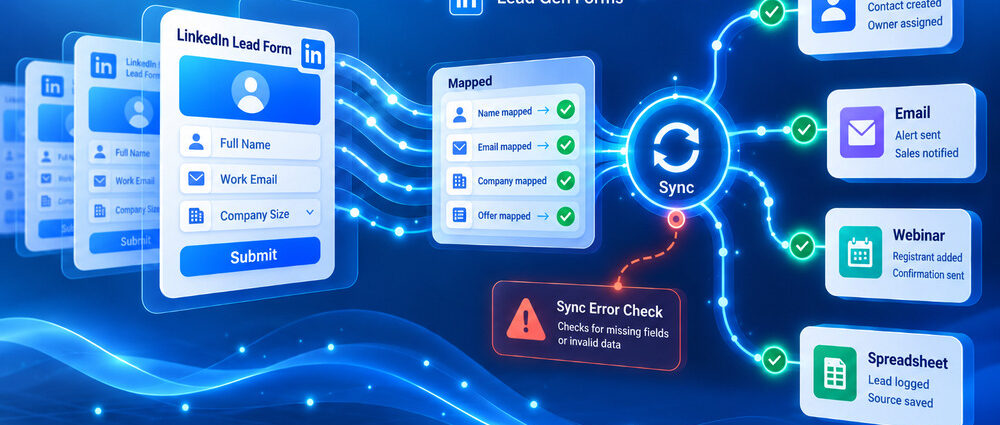
A lead appears in LinkedIn Campaign Manager but never reaches the CRM. Another arrives without its campaign source or triggers the wrong follow-up. LinkedIn Lead Gen Forms integrations are meant to prevent those gaps by moving submissions into the systems that handle them. Capturing a form response is only the first step.
To find the problem, follow the response from LinkedIn through the connector to the receiving application. Each system controls a different part of the process, so an active connection tells you less than a test of the action the destination was supposed to take.
Choose an Integration Based on the Next Action
Not every destination needs a direct LinkedIn-to-CRM connection. LinkedIn supports marketing automation and CRM partners, while external automation services can move form responses to other applications. Some businesses will need a partner workflow rather than a built-in connection. Where no suitable route is available, LinkedIn’s integration guidance also describes manual CSV export as a fallback.
Success depends on the destination. A CRM may need a contact with source fields, an owner, and a follow-up task, whereas a webinar platform needs a registration for the correct session; an email application might only need to alert sales.
| Destination | Practical Connection Route | What to Verify After Delivery |
|---|---|---|
| HubSpot or Salesforce | Supported CRM or marketing partner connection, subject to account setup | Contact or lead record, property mapping, source, and ownership |
| Pipedrive | A compatible partner or automation workflow, such as Zapier | Person versus lead or deal creation, duplicate handling, and assigned owner |
| GoTo Webinar | Automation connecting a form response to a webinar-registration action | Correct webinar, registrant details, and confirmation process |
| Mailchimp | Compatible connector or automation workflow | Audience, contact fields, subscription status, and permission to send marketing |
| Google Sheets or Gmail | Automation for a log or notification | Correct row or recipient, safe data handling, and an actual follow-up owner |
| Unsupported or specialized system | Manual CSV import or an approved custom integration | Required fields, error handling, and a repeatable delivery process |
First decide which system owns the lead record. Sending the same response through two automations can produce separate contacts, while sending it to a CRM and a webinar platform may be justified because the two systems have different jobs. The existing guide to how LinkedIn Lead Gen Forms work covers form capture and post-submit measurement; this article focuses on the transfer between systems.
Set Up LinkedIn Lead Gen Forms Integrations in the Right Order
Start with one form, one destination, and a specific expected result. Authorization alone does not establish that the lead reached its destination, so set up and test the complete workflow in this order:
- Identify the LinkedIn ad account, Company Page, and specific Lead Gen Form that should supply responses.
- Identify the exact source: a sponsored Lead Gen Form or an eligible non-ad form where the selected connector supports it. Do not assume every organic-form trigger represents a form that advertisers can currently create.
- Authorize the supported CRM, partner, or automation service with a LinkedIn user who has the required access.
- Select the destination action, such as creating or updating a CRM person, adding a webinar registrant, or assigning a sales task.
- Map the information the destination actually uses, including contact details, custom answers, form identification, and campaign context where supported.
- Define how to handle existing records, failed actions, and leads that cannot be assigned, then submit a test lead before launch.
Field mapping and record type deserve more attention than the initial sign-in screen. An automation that creates a new deal for every report download can fill the pipeline with unqualified opportunities. Creating a person first, then applying qualification rules, may fit the sales process better. Choose the destination action based on what the prospect actually requested.
Check Both Ad Account and Company Page Permissions
LinkedIn permissions operate at more than one level. Access to view an ad account does not necessarily provide the Company Page rights required to connect its leads to a CRM. Its Lead Gen Forms permissions guidance distinguishes actions such as viewing, testing, downloading, and integrating leads. When an ad account belongs to a Business Manager, LinkedIn also requires the associated Page to belong to that same Business Manager for lead downloads.
Check who authorized the original connection. An agency employee may leave, a Page administrator may lose access, or an old personal LinkedIn login may still own the authorization; any of those changes can interrupt delivery while the form keeps accepting submissions.
Treat Form Edits as Integration Changes
A new question on a draft or otherwise editable form can change what the destination receives. LinkedIn limits changes to forms associated with active ads, so adding a qualification question is not always possible without creating or using another form. Some third-party partners also do not support every hidden field, custom checkbox, or member-profile link field. Even when a response appears correctly in LinkedIn, the connector may still use an older field mapping; check the receiving CRM property to confirm that the information survived.
After changing an eligible form, review its selection and field mappings in the connector, then send a fresh test response. LinkedIn says edits to active forms may trigger another ad review and temporarily interrupt serving; draft-form field changes may also require partner-side resync. Follow the provider’s instructions rather than assuming every edit automatically updates the integration.
LinkedIn Lead Gen Forms CRM Integrations
HubSpot, Salesforce, and Pipedrive can serve the same sales team but still have different integration mechanics. Choose the supported route available in the specific account instead of relying on a generic instruction to “turn on CRM sync.” Access to the lead, field mapping, and the action taken after delivery should be reviewed separately.
HubSpot and Salesforce Need Their Own Sync Checks
HubSpot documents LinkedIn lead-ad syncing through its Ads settings and provides tools to review sync errors where available. According to HubSpot’s lead-sync documentation, a new lead can take up to two hours to sync. An absent contact immediately after submission is therefore not always evidence of a broken integration, although persistent gaps still need investigation.
Start with the authorized LinkedIn account and Page, the selected forms, and the properties receiving data in HubSpot. Search for the lead by email or another appropriate identifier before assuming it is missing. The submission may have updated an existing contact rather than created a new one. Next, inspect any routing rules and workflows. A contact can be present and still receive no follow-up if ownership is blank.
Salesforce Sales Cloud requires its own connection and field-mapping checks. LinkedIn’s partner-specific troubleshooting instructions describe refreshing ad accounts in Salesforce and updating mappings under Manage LinkedIn Fields after eligible form changes. A lead can sync without the LinkedIn member-profile field, which Salesforce does not support through this integration; that omission should not be mistaken for a total sync failure.
Pipedrive Needs a Deliberate Record Type
The LinkedIn Ads and Pipedrive integration options listed by Zapier include workflows that create people, leads, deals, or activities from form responses. That variety is useful but also a decision the advertiser must make. A content download should not automatically become a sales opportunity merely because the connector offers a Create Deal action.
Choose how the automation identifies an existing person, handles repeat responses, and assigns ownership or activities. Where the workflow permits it, test both an existing email address and a new one; a completed run is not enough if it creates duplicates or discards the original source.
Connect Webinar, Email, and Spreadsheet Workflows Carefully
Webinar registrations, marketing email, and internal alerts require different destination actions. A connector may finish its run without delivering what the ad promised—for example, when a webinar prospect becomes a CRM contact but never receives a registration confirmation.
GoTo Webinar Requires a Registrant, Not Just a Contact
Zapier publishes a workflow that creates GoTo Webinar registrants from LinkedIn form responses. The test is whether the person appears on the roster for the intended webinar with the required details—not whether the same submission reached a CRM.
Before launch, confirm that the selected webinar is the one advertised and still accepts registrants. Test the required fields, then inspect the registration itself. Does the confirmation reach the person who signed up? Can the team identify attendance and no-shows afterward? Those follow-up steps may require separate setup; the initial form connector does not guarantee them.
Mailchimp, Gmail, and Google Sheets Solve Different Problems
A LinkedIn Lead Gen Forms Mailchimp integration may create or update an audience contact through an automation provider. Zapier lists LinkedIn-to-Mailchimp workflows. But adding a record and subscribing someone to marketing messages are separate decisions, and a lead-form submission does not settle both. Check the person’s permission to receive messages, the subscription status, and how the workflow handles a contact already in the audience.
For Gmail, the integration is typically an email action or alert, not a managed lead record. Google Sheets can provide a review log, but a new row does not automatically assign sales ownership; for either route, decide who responds and how personal data is protected.
This matters especially for webinars, where a registration-related form does not automatically authorize unrelated marketing campaigns. Keep later messages consistent with the consent and offer; moving a contact between tools does not expand the permission originally given.
Test Lead Delivery at Every Step
A good test checks the entire journey. LinkedIn provides a Send Test Lead function in Campaign Manager. Its documentation notes that a new test lead can overwrite an existing test lead. A test submitted from the Ads tab includes ad and ad set identifiers in the downloaded report, which can help when the downstream workflow needs more than the form identifier. Save the submission time and selected values before you start tracing the record.
Run a new test using the exact form and source that the live campaign will use. Keep a record of the submission time and chosen test values, then inspect the following chain:
- Confirm the test response is visible in LinkedIn’s lead report.
- Check whether the selected connector received that response and which source form triggered it.
- Open the destination record or registrant, rather than relying only on a success message in an automation log.
- Compare submitted fields with stored properties, including custom answers and available campaign identifiers.
- Confirm that duplicate handling, assignment, notifications, and follow-up actions behaved as intended.
- Record the outcome and repeat the test after meaningful changes to the form, permissions, or mapping.
A missing test record is a reason to inspect how the connector handles test data, not an immediate verdict on the live campaign. LinkedIn notes that Zapier deduplicates submissions by Lead ID; repeating a test may therefore produce no new trigger, even when the connection works. Its partner guidance suggests testing with another member or a new creative when that happens. Permissions and mappings can also change after a successful test, so monitor production delivery rather than waiting for sales to report missing leads.
Why LinkedIn Leads Fail to Sync
When LinkedIn lead sync fails, check first whether the submission appears in Campaign Manager. If it does, investigate the connector and destination; if it does not, check the source form before reconnecting applications that may be working correctly.
| Symptom | First Place to Check | Likely Next Action |
|---|---|---|
| Form submissions appear in LinkedIn but not in the destination | Connector run history and LinkedIn access permissions | Review authorization, selected account, selected form, and delivery errors |
| The ad account connects but no forms are available | Company Page access and source selection | Verify Page role and whether the connector expects sponsored or organic forms |
| A lead record exists but custom questions are empty | Field mappings and connector field support | Refresh mappings and send a new test response |
| A revised form stops syncing correctly | Stored form selection or outdated connector schema | Re-select the changed form and follow partner resync instructions |
| The contact exists but no sales action happens | CRM owner assignment, workflows, or filters | Test the downstream automation independently |
| The same person appears as several records | Create-versus-update action and matching logic | Set a suitable record-matching and duplicate-handling rule |
| Webinar contacts arrive but nobody is registered | Destination action and webinar selection | Confirm the Create Registrant step and required fields |
A successful connector run does not confirm that every field was delivered. Some fields may be unsupported, while a CRM report filter can hide a contact that was imported correctly. HubSpot’s LinkedIn troubleshooting guidance mentions permissions and report filters among the reasons a lead may appear to be missing. Inspect the actual record, not just the dashboard total. If the record is present, work forward through assignment and follow-up rather than running the authorization steps again.
Use the timing of the failure as a clue. A form edit points toward field mapping; a staffing change toward authorization; inconsistent test results toward the connector’s handling of test data or duplicates.
Preserve Source, Lead Quality, and Consent After Sync
A transferred email address is not enough to explain which campaign produced a qualified lead. Wherever the destination supports it, preserve the LinkedIn form, campaign context, offer, submission time, and the original response identifier alongside the contact details. Avoid relying solely on a free-text source label that can be overwritten later by another import.
Set a clear rule for when a form response becomes a CRM lead, a sales-accepted lead, or an opportunity. That prevents automation from turning every webinar signup or content download into a deal. It also makes cost per lead versus cost per qualified lead a more meaningful comparison after a new integration changes the volume of recorded contacts.
Limit transferred data to what the destination needs and the applicable permissions allow. Hidden attribution fields are not an exemption from consent or privacy requirements. Establish who can inspect failed runs, how long connector records are retained, and how downstream copies are corrected or deleted when necessary.
When a Custom LinkedIn Lead Sync API Makes Sense
A custom pipeline can be reasonable when an organization has several business units, strict routing rules, a data warehouse, or destinations unsupported by established partners. It can also add monitoring tailored to the business, such as checking for missing event identifiers or alerting an operations team when a destination rejects a response.
Custom development is not automatically available to any advertiser with a developer. LinkedIn’s Lead Sync API documentation describes a separately approved program for reading lead responses and managing notifications; access to other advertising APIs does not grant lead-sync privileges on its own. The API distinguishes sponsored leads from eligible event and other non-ad sources, but LinkedIn no longer allows new lead forms for Company Pages and Showcase Pages, even though some existing Page forms continue to function. A custom workflow must still handle account and Page permissions, API-version changes, field mapping, and permitted data use.
Build only when a supported partner cannot meet a defined requirement. A system that needs one contact and one follow-up task rarely warrants another integration to maintain. Custom pipelines also require monitoring, maintenance when APIs change, and a response plan for failed deliveries; design for visible errors and safe retries from the outset.
Reliable Integrations Are Measured by What Happens Next
Reliable LinkedIn Lead Gen Forms integrations deliver a usable lead to the right system and prompt the intended next action. For a CRM, that may mean ownership and timely follow-up; for a webinar, a valid registration and confirmation. In a broader B2B lead generation process, those outcomes need to match how sales or marketing will handle the response.
Keep the first route simple enough to test and monitor. Once the transfer is dependable, connect qualification and sales outcomes so the team can see whether leads were acted on, rather than counting records created. Add another destination only when it serves a distinct purpose.